I used to treat online privacy like flossing. I knew it mattered, but I did it “when I remembered.” Then I got a login alert at 2:11 a.m. from a place I have never visited, and my confidence disappeared fast. That’s when I built a routine I can repeat without turning my life into a cybersecurity job.
If you’re searching how to protect personal data online, I’ll keep this practical and real. I’ll share the habits I rely on weekly, the settings I check monthly, and the few tools that do the heavy lifting while I live my normal life.
How to protect personal data online with passwords that don’t betray you?

Passwords still cause most of the mess. People don’t fall because they “lack security knowledge.” They fall because they reuse a password once, then a breach turns that one mistake into five compromised accounts.
I keep my passwords long and boring to crack. I aim for 15+ characters, and I avoid personal stuff like birthdays, pet names, or that one “clever” pattern I think nobody will guess. Hackers love patterns. I refuse to give them one.
I also treat my email password like the master key to my whole house. If someone grabs your email, they can reset almost everything. So I make that password unique, extra long, and protected with multi-factor authentication.
How to protect personal data online using MFA without making life annoying?
Multi-factor authentication (MFA) sounds like a hassle until it saves you. I use it on anything that matters: email, banking, cloud storage, social accounts, and password manager. I don’t negotiate with myself on this one.
I prefer an authenticator app (like Google Authenticator or Microsoft Authenticator) because SMS codes can get intercepted during SIM-swap attacks. If I want the strongest option, I use a physical security key, especially for business logins and admin accounts.
Here’s the mindset that keeps it easy: MFA adds a tiny pause now so you don’t spend a weekend recovering accounts later. I’ll take the pause.
How to protect personal data online with a password manager you’ll actually use?
I don’t “memorize better.” I outsource the job. A password manager (Bitwarden or 1Password) helps me generate strong logins and store them safely, so I never reuse a password out of laziness.
When I set one up, I start with my highest-risk accounts first: email, Apple/Google account, banking, and social media. Then I upgrade the rest when I log in naturally. That way, the process feels like a routine, not a renovation.
Credential stuffing hits hard after major breaches. Attackers take leaked email/password combos and try them everywhere. A password manager shuts that down because every login stays unique.
How to protect personal data online when Wi-Fi feels sketchy?
I treat public Wi-Fi like a public bathroom sink. Useful, but I keep it quick and I don’t put valuables on the counter.
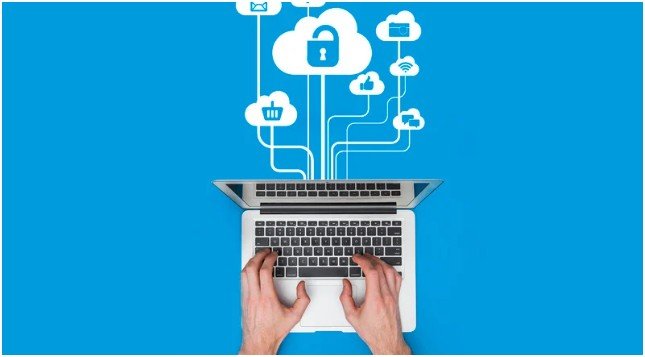
When I use Wi-Fi in a café, hotel, or airport, I turn on a VPN. A VPN encrypts my traffic so people on the same network can’t snoop. It doesn’t make me invisible, but it cuts down the easiest attacks.
I also check for HTTPS before I type any personal info. If I don’t see “https://” and the padlock, I don’t sign in, shop, or submit forms. I’d rather leave the site than gamble with my data.
At home, I secure my router with a strong password and modern encryption like WPA2 or WPA3. I also update the router firmware when it prompts me. That one step prevents a lot of “why did my network get weird?” problems.
How to protect personal data online by sharing less (without going off-grid)?
Data minimization sounds dramatic, but it’s actually chill. I don’t need to disappear. I just stop handing out personal clues for free.
I avoid posting my birthday, hometown, school names, and daily routines publicly. Those details help scammers guess security questions and pull off convincing social engineering. I also avoid sharing live location or travel plans in real time. I post the cute photos after I get home.
I use email aliases or burner emails for newsletters, coupon pop-ups, and one-time downloads. That habit keeps my main inbox cleaner and reduces damage if a site leaks user data.
I also delete accounts I don’t use. Old accounts become “ghost doors” into your digital life. If I haven’t used a service in a year, I close it and move on.
A simple routine that keeps me consistent
| Routine | What I check | Time it takes |
| Weekly | Bank activity + primary email login alerts | 5 minutes |
| Monthly | Password manager “weak/reused” report | 10 minutes |
| Monthly | App permissions (location, mic, camera) | 10 minutes |
| Quarterly | Delete old accounts + clean up social privacy settings | 20 minutes |
| As needed | Breach check + credit freeze decision | 15 minutes |
This schedule keeps it sustainable. I don’t rely on motivation. I rely on repetition.
How to protect personal data online with a step-by-step routine you can repeat?
I start with accounts because they create the biggest risk fast. First, I update my primary email password to something long and unique, then I enable MFA using an authenticator app. I do the same for my bank, cloud storage, and social accounts, in that order, because those services unlock the most recovery paths.
Next, I install a password manager and switch passwords gradually. I don’t try to fix 80 accounts in one sitting. I change passwords when I log in naturally, and I let the password manager generate them. That keeps me consistent and prevents “I’ll do it later” from winning.
Then I tighten my connectivity habits. I turn on my VPN before I use public Wi-Fi, and I avoid banking on public networks entirely. I also check my home Wi-Fi security, update my router firmware, and set WPA2 or WPA3. After that, I review device updates and app permissions so apps don’t access my microphone, camera, or location without a real reason.
Finally, I set a monitoring habit. I check accounts weekly for weird activity, and I act fast when something feels off. Quick action beats perfect planning.
How to protect personal data online when something goes wrong?
Even good habits don’t guarantee perfection. So I plan for recovery the same way I plan for rainy weather. I don’t panic, but I keep the umbrella nearby.
I check for exposed data using Have I Been Pwned when I hear about a breach. If I see my email listed, I change passwords for affected accounts immediately, starting with email and banking. I also review active sessions and log out devices I don’t recognize.
If I suspect identity theft, I freeze my credit with Equifax, Experian, and TransUnion. Credit freezes stop new accounts from opening under my name, and that one move can save you from months of cleanup. If things escalate, I report identity theft through the FTC Identity Theft Portal so I can follow a structured recovery plan.
FAQ: how to protect personal data online
1) How do I protect personal data online if I’m not “techy”?
You don’t need tech skills. You need repeatable habits. I start with a password manager because it removes most of the work. Then I enable MFA on email, banking, and social accounts. After that, I turn on automatic updates and keep a simple weekly check for suspicious logins or charges. When you rely on tools and routine instead of willpower, you stay protected without feeling overwhelmed.
2) Is a VPN enough to protect personal data online on public Wi-Fi?
A VPN helps a lot on public Wi-Fi because it encrypts your traffic, but it doesn’t solve everything. I still avoid banking on public networks, and I only sign in to sites that use HTTPS. I also stay alert for fake Wi-Fi networks that copy real names like “Airport_Free_WiFi.” A VPN gives you a safer tunnel, but your choices still matter.
3) What’s the fastest way to protect personal data online after a breach?
I move in this order: email first, then banking, then everything else. I change passwords to unique ones, enable MFA, and log out unknown devices or sessions. Then I check recent transactions and set alerts for suspicious activity. If identity theft feels possible, I freeze credit right away. Speed matters because attackers act quickly after leaks.
4) How often should I check app permissions and privacy settings?
I do a quick sweep monthly because apps change and updates add new permissions. I focus on location, microphone, camera, contacts, and background access. I also review social media privacy settings quarterly, especially after app updates. This habit keeps your footprint smaller without turning into a daily chore.
How to protect personal data online without turning into a paranoid hermit
I don’t chase perfection. I chase consistency. When I keep passwords unique, MFA on, devices updated, and sharing under control, I feel calm instead of constantly on edge.
If you take one tip from me, take this: protect your email like it pays your bills, because it basically does. Most account recovery flows start there, and a strong email setup makes everything else easier.
You don’t need to fear the internet. You just need a routine that has your back.