
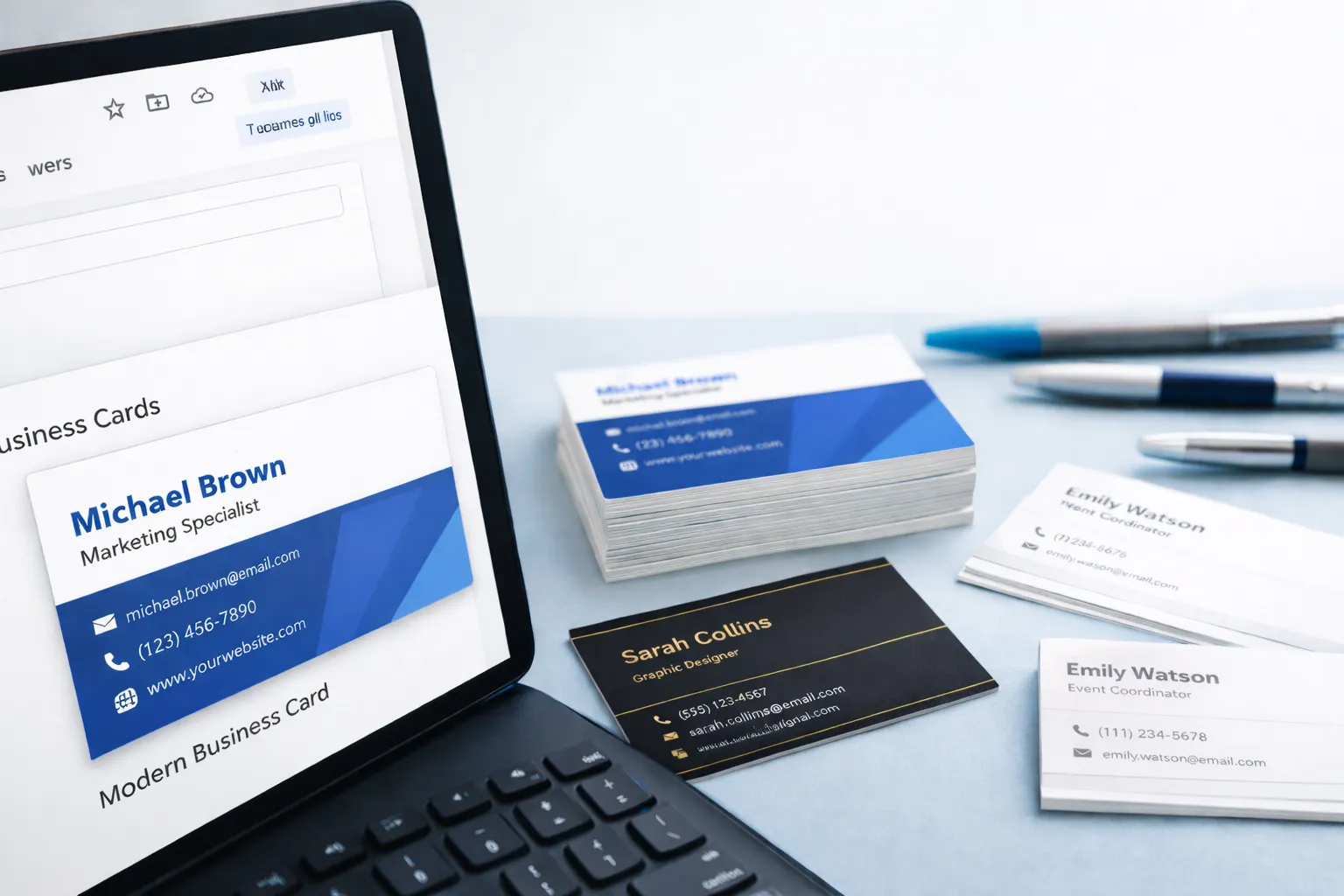
Creating your own business cards might sound like a job for a professional designer, but what if I told you that you could create stylish and professional cards without breaking a sweat?
Here’s the kicker: You can do it for free using Google Docs. Whether you’re an entrepreneur looking to hand out your info or just want a personalized card, learning how to make business cards on Google Docs can be a game changer.
In this blog, I’ll walk you through two simple methods for making business cards on Google Docs—whether you want to use a template or design from scratch, I’ve got you covered.
So, grab your coffee (or tea, no judgment), and let’s dive into how to make business cards on Google Docs today!
Why Use Google Docs for Business Cards?
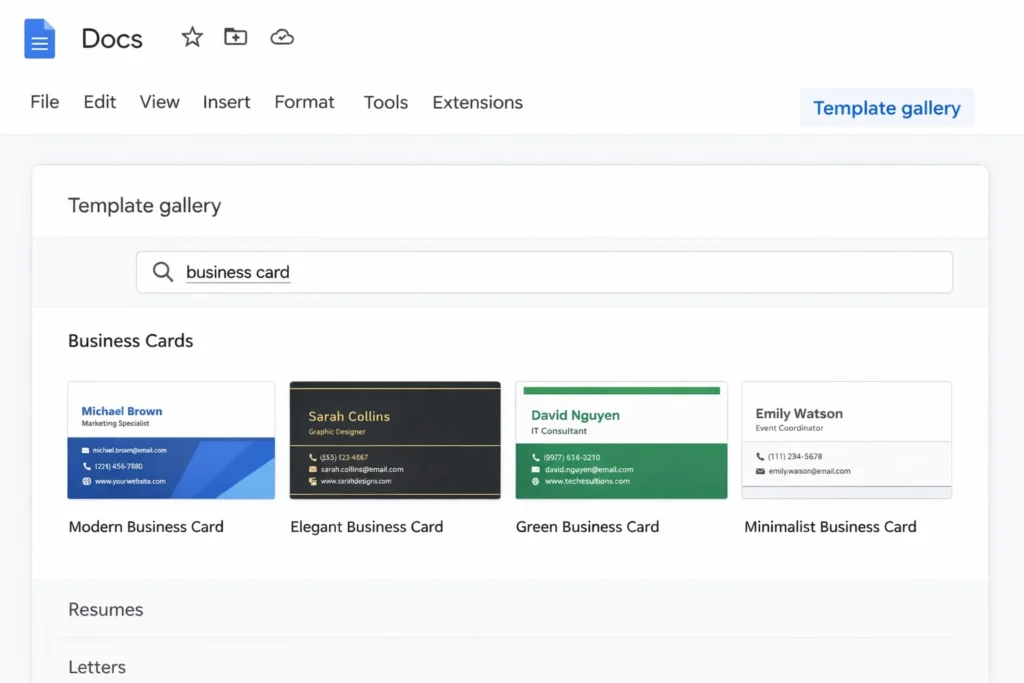
You might be wondering, “Why Google Docs?” Well, here’s the deal: Google Docs is free, easy to use, and accessible to anyone with a Google account. Plus, the process is beginner-friendly, which is perfect for those with minimal design experience.
Also, if you’re on a tight budget or just don’t feel like paying for professional services, learning how to make business cards on Google Docs gives you full control over your business card design—all without the stress.
Now, let’s jump into how you can create your business cards on Google Docs in a couple of different ways.
Method 1: Using a Template – The Easiest Route
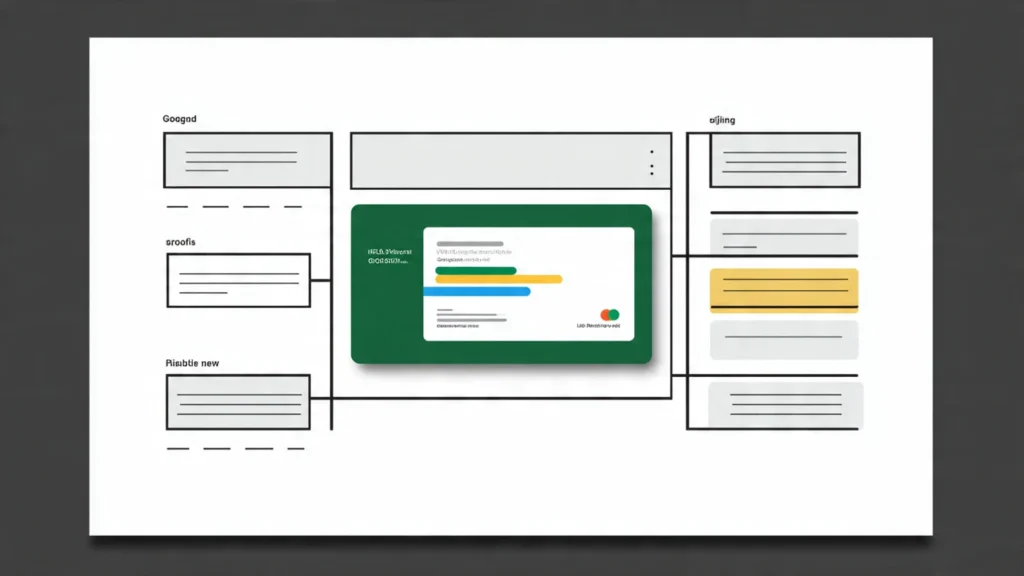
If you’re short on time and need something that looks polished right off the bat, using a template is your best bet. Here’s how to do it:
How can I create business cards using a template in Google Docs?
- Open Google Docs: Log into your Google account, then open Google Docs.
- Go to Template Gallery: On the main screen, click on the “Template Gallery” button in the top-right corner.
- Search for Business Card Templates: Type “business card” in the search bar, or explore templates available online. Websites like Template.net offer Google Docs-compatible templates, which you can upload directly.
- Customize Your Template: Once you’ve selected your template, replace the placeholders with your name, job title, company details, and contact information.
- Add a Logo or Image: To add your logo, go to “Insert” > “Image” and upload a high-quality version from your computer or Google Drive.
- Refine Your Design: Customize the font, color scheme, and layout to match your branding. Keep things clean, simple, and easy to read.
- Review for Typos: Check for spelling errors, formatting issues, or anything that needs tweaking before printing.
Using a template is an easy way to get started, especially if you need something quick and professional-looking.
Method 2: Creating Your Business Card from Scratch – Full Control Over Design
If you want more creative freedom, making your business card from scratch is your go-to option. Let’s go through the steps:
How do I design a business card from scratch in Google Docs?
- Set Up the Document: Open a new blank document in Google Docs. Now, go to “File” > “Page Setup” and set the page size to 3.5 inches by 2 inches (standard business card dimensions) with landscape orientation. Make sure to set the margins to 0 inches.
- Insert a Table: To structure your card, click on “Insert” > “Table” and select a 1×1 table. This will serve as the frame for your card.
- Add Text Boxes and Images: You can add text by typing directly into the table. For logos and images, go to “Insert” > “Image” to upload any file you need. Drag and drop elements to position them exactly where you want them.
- Align Everything: Use Google Docs’ rulers and guides (under the “View” menu) to align text and images neatly.
- Customize Your Card: Play around with fonts, colors, and layout to match your style and company branding. Google Docs gives you enough flexibility to make the card truly your own.
- Review and Refine: Don’t forget to double-check the details before moving on to printing. Ensure everything looks polished and professional.
This method is perfect for those who want total control over the design process and are willing to put in a little more time for that personal touch.
How to Print Your Business Cards on Google Docs
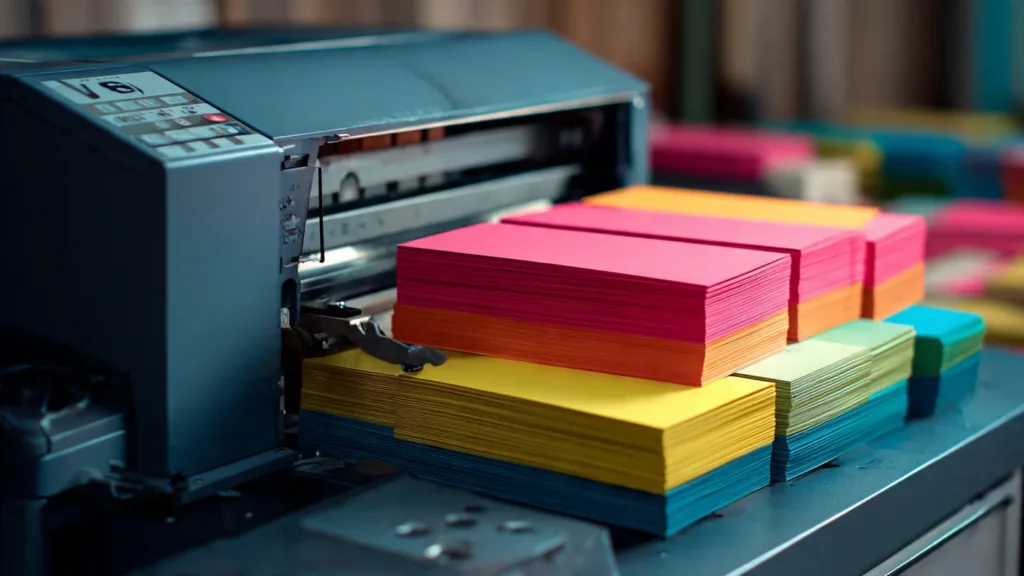
Once you’ve created the perfect business card, the next step is printing. Here’s how you can do it:
- Export as PDF: Before printing, export your design as a PDF by going to “File” > “Download” > “PDF Document.” This ensures your layout remains intact.
- Use Cardstock Paper: For a professional feel, use thicker paper like cardstock. It’ll give your cards a sturdy, high-quality texture.
- Test Print: Print a test version on regular paper to check the alignment and spacing before you use your final cardstock.
- Print Professionally: If you want the best results, you can send the PDF to a local print shop or use online services.
Frequently Asked Questions
1. How do I make sure my business card looks professional on Google Docs?
A professional business card is all about legibility and simplicity . Stick to clean fonts, balanced spacing, and a simple design. Avoid clutter—remember, less is more.
2. Can I add a logo to my Google Docs business card?
Yes! You can easily add logos or images by going to “Insert” > “Image” and uploading the file. Just make sure the logo is high-quality for the best results.
3. How do I adjust the layout for multiple business cards on one page?
You can copy your card design and paste it into other sections of the page. Use the table layout to structure multiple cards neatly. Keep in mind the margins for a proper printout.
4. Can I use a custom font on my Google Docs business card?
Absolutely! Google Docs offers a variety of fonts, or you can upload your own by going to “More Fonts” in the font dropdown menu.
Wrapping It Up: Your Business Cards Are Just a Few Clicks Away
Now that you know how to make business cards on Google Docs, go ahead and experiment with different designs and see which one reflects your style best.
Whether you’re opting for a template or creating your card from scratch, you have the tools at your fingertips to make something professional. So get started, have fun, and let your business card make the perfect first impression!
Final Tip: Be Your Own Designer